
Overheating Laptop Problems – Improve Cooling Without Major Repairs

Overheating laptop problems often improve when airflow is restored and unnecessary heat sources are reduced. Start with the simple causes: blocked vents, dusty surroundings, demanding background software, hot room conditions, or using the computer on a soft surface. Persistent shutdowns, battery swelling, burning smells, or extreme temperatures require more cautious attention.
Start With Safe Cooling Checks
If the laptop becomes unusually hot, shut it down and place it on a hard, dry, well-ventilated surface. Disconnect the charger if you suspect a power or battery problem.
Never continue using a device with a visibly swollen battery, smoke, sparking, or a strong burning odor. Don’t puncture or press a swollen battery. Those conditions call for professional service and careful handling rather than ordinary cooling experiments.
Once the computer is cool, check where its intake and exhaust vents are located.
Keep Air Vents Clear During Use
Beds, blankets, cushions, and laps can partially block vents on some laptop designs. Moving the machine to a solid desk or stand may improve airflow immediately.
People browsing technology maintenance tips may encounter complicated cooling modifications, but basic airflow should be checked before buying extra equipment. Leave breathing room around exhaust openings and avoid stacking papers or objects against the computer.
Dust around external vent openings can also restrict airflow. With the laptop powered off, gently clean accessible exterior areas without forcing objects deep inside the case.
Check Which Programs Are Creating Heat
A laptop can run hot even when its vents are clear because the processor or graphics hardware is working continuously. Open the operating system’s built-in task or activity monitor and look for applications consuming unusually high resources.
Background syncing, browser tabs, games, video rendering, updates, or misbehaving software can all increase workload. General everyday device advice is most useful when it encourages diagnosis before replacement: identify what the computer is doing before assuming the cooling hardware has failed.
Close unnecessary applications and restart the system if a process appears stuck.
| Observation | Possible Cause | First Check |
|---|---|---|
| Hot on soft surface | Blocked airflow | Move to hard surface |
| Fan always running | Heavy workload | Check active processes |
| Sudden shutdowns | Excessive heat | Stop and investigate |
| Little airflow | Dust or fan issue | Inspect ventilation |
Improve the Laptop’s Working Environment
Room conditions matter. Direct sunlight through a window, a hot vehicle, or a desk near a heat source makes cooling harder because the laptop is drawing in warmer air.
A collection of practical computer guides may suggest cooling pads or stands. A stand can be useful when it improves ventilation, but accessories cannot compensate for a failed internal fan or severely clogged cooling system.
Also check whether the manufacturer’s operating-system, firmware, or driver updates are appropriate for your model. Software problems can sometimes cause unnecessarily high processor activity.
Know When Internal Cleaning Becomes Necessary
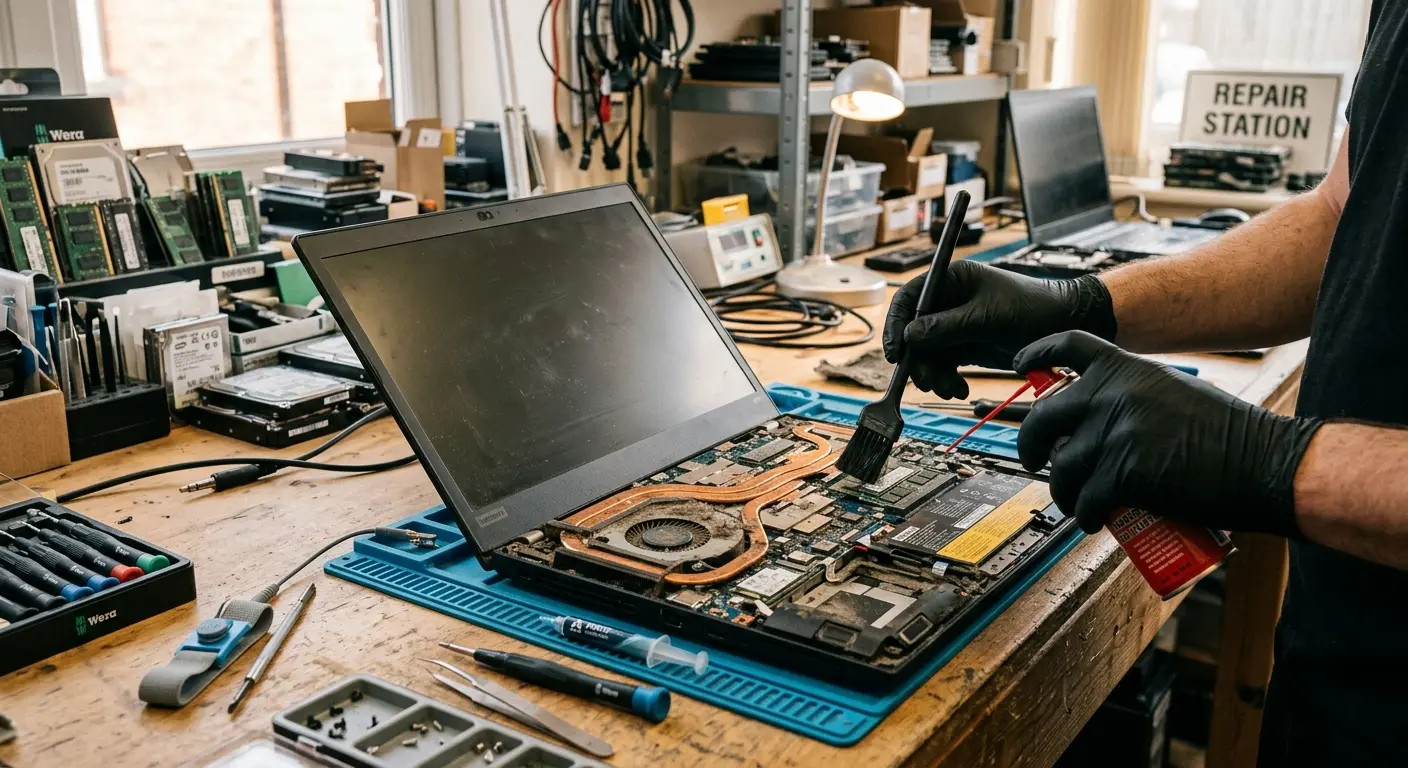
Dust can accumulate around fans and heat sinks over time. Opening a laptop, however, isn’t the right first step for everyone.
Internal layouts differ, and careless disassembly can damage connectors, strip screws, affect warranty coverage, or expose the battery to accidental damage. If external cleaning and software checks don’t help, professional cleaning may be safer than experimenting on an unfamiliar machine.
A grinding, rattling, or completely silent fan when the device is hot may also indicate a hardware problem that surface cleaning cannot correct.
Cooling Mistakes That Can Make Things Worse
Don’t put an overheating laptop in a refrigerator or freezer. Rapid temperature changes and condensation can introduce moisture into electronics.
Avoid blasting high-pressure air blindly into vents while the computer is running. Spinning or disturbing internal components isn’t a substitute for proper cleaning.
Another mistake is repeatedly restarting a laptop after heat-related shutdowns without investigating the cause. Automatic shutdown may be protecting hardware from excessive temperature, so repeated operation can turn a warning sign into a larger repair.
Frequently Asked Questions
Is it normal for a laptop to feel warm?
Yes. Processors, graphics chips, batteries, and charging components naturally produce heat. The concern is persistent excessive heat, repeated performance throttling, unexpected shutdowns, unusual odors, battery swelling, or other signs that normal cooling isn’t keeping up.
Does a laptop cooling pad fix overheating?
It may improve airflow for some designs, especially when the laptop benefits from additional space beneath its intake vents. It won’t repair a failed fan, damaged battery, dried thermal material, or serious internal blockage.
Can too many browser tabs make a laptop hot?
They can contribute when tabs are actively using processor, memory, graphics, or network resources. Check the system’s activity monitor to identify which programs or browser processes are consuming significant resources before closing things at random.
Solve the Simple Cooling Problems First
Start overheating troubleshooting with airflow, workload, and environment because those checks are inexpensive and reversible. Use the laptop on a hard surface, clear its vents, reduce unnecessary processing, and watch for recurring symptoms.
If overheating continues or you notice battery swelling, electrical smells, fan failure, or repeated shutdowns, stop treating it as a minor comfort issue and have the hardware inspected.