
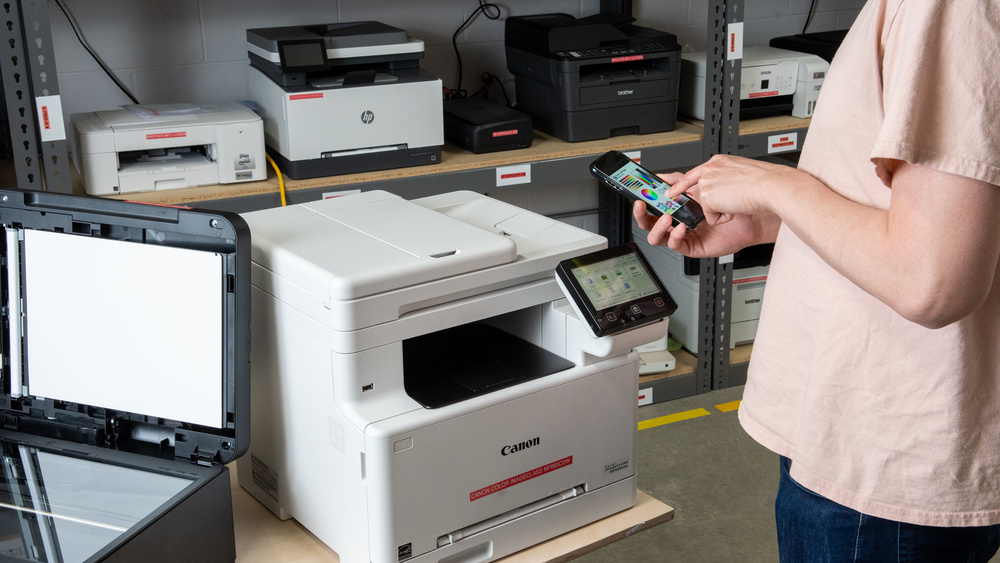
Slow Wireless Printing – Improve Connections With Better Setup

Slow wireless printing often comes from the network path rather than the printer’s mechanical speed. Weak Wi-Fi, crowded networks, oversized print jobs, outdated software, or a printer connected through the wrong network can all add delays. Checking the connection methodically is usually more useful than repeatedly restarting everything.
Identify Where the Delay Happens
First determine whether the delay occurs before printing begins or while pages are physically coming out. A long pause before the first page points toward communication, processing, or queue problems.
Technical troubleshooting often involves moving between device manuals, practical online reading, operating-system help pages, and router settings. Testing one variable at a time prevents several simultaneous changes from hiding the actual cause.
Compare Wireless and Direct Printing
If possible, print the same simple document using another supported connection method. A document that prints quickly over USB but waits over Wi-Fi provides a strong clue that the network path deserves attention.
Improve the Printer’s Network Connection
Check that the computer, phone, and printer are using the intended network. Dual-band routers, guest networks, extenders, and multiple access points can create configurations where devices have internet access but communicate poorly with each other.
A useful troubleshooting order is:
- Confirm both devices are on the correct network.
- Restart the printer and network equipment if appropriate.
- Move the printer closer to the access point for testing.
- Try a small text-only print job.
- Check for printer software or firmware updates.
People may also browse author-focused technology material while troubleshooting, but the printer manufacturer’s documentation should guide model-specific setup.
Check the Print Queue and Job Size
A wireless connection may be fine while one problematic job blocks everything behind it. Open the print queue and look for stalled, duplicated, or unusually large jobs.
| Symptom | Likely Area | First Check |
|---|---|---|
| Long delay before printing | Network or queue | Connection and jobs |
| Small files print normally | File processing | Document size |
| Printer repeatedly goes offline | Wi-Fi stability | Signal and network |
| Every job is slow | Setup or driver | Software configuration |
High-resolution images, complex PDFs, or graphic-heavy documents require more data and processing than a short text page. Comparing them against a simple test job helps separate normal processing from a connection problem.
Reduce Wireless Interference and Setup Conflicts
Distance, walls, crowded radio channels, and placement near other electronics can weaken connectivity. Moving the printer temporarily closer to the router is an easy diagnostic test before buying new equipment.
People sorting through broader troubleshooting viewpoints should avoid changing numerous router settings at once. If one adjustment improves performance, you’ll want to know which one actually mattered.
Where supported, an Ethernet connection can also provide a useful comparison and may be preferable for a printer that rarely moves.
Common Fixes That Don’t Solve the Real Problem
Repeatedly reinstalling drivers isn’t useful when poor Wi-Fi signal is causing the delay. Likewise, replacing a printer because one large PDF prints slowly may waste money if ordinary documents perform normally.
Another common failure point is reconnecting the printer to a different network without updating the computers that send jobs to it. If troubleshooting creates more connection problems, return devices to the last known working network and rebuild the setup one step at a time.
Frequently Asked Questions
Why does my wireless printer take so long to start?
The printer may be waiting for data, processing a complex job, reconnecting to Wi-Fi, or dealing with a stalled print queue. Testing a simple document can help narrow the problem.
Does moving a printer closer to the router help?
It can if weak signal strength or interference is contributing to the slowdown. A temporary move is especially useful as a diagnostic test before changing equipment or network settings.
Can a large PDF make wireless printing slower?
Yes. Image-heavy or complex documents may require more processing and data transfer than basic text files. If small documents print normally, the PDF itself may be contributing to the delay.
Fix the Connection Before Replacing Hardware
Start with the network, queue, job size, and software setup before assuming the printer has failed. A few controlled tests can reveal whether the bottleneck is Wi-Fi, processing, or configuration. Once the slow point is identified, the correction is usually simpler—and cheaper—than replacing equipment blindly.